


Download YouMemo – Touch‑Screen Note‑Taking App, Free & Secure
Overview
YouMemo is a lightweight yet powerful note‑taking tool designed primarily for touch‑screen computers. The app mimics a classic cork board, allowing users to pin virtual notes, sketches, and reminders wherever they like on the main workspace. Its interface is deliberately simple: large buttons, clear menus, and an intuitive drag‑and‑drop experience that feels natural when you use your fingers instead of a mouse.
Whether you are a student jotting lecture highlights, a professional brainstorming ideas, or a casual user keeping grocery lists, YouMemo gives you the flexibility to create unlimited notes and arrange them freely. The software supports custom background colors, multiple writing tools, and a selection of stamps and brushes that automatically insert graphics—making each note visually distinct. A basic alarm function alerts you when a note’s deadline arrives, though it currently lacks advanced scheduling options.
While YouMemo runs on any PC, it truly shines on devices equipped with touch capabilities, delivering a smooth, responsive experience that turns your screen into a digital sketchpad. The app is free to download, regularly updated for security patches, and offers a secure environment for storing personal memos without cloud dependencies unless you choose to export them manually.
Key Features & Customization Options
- Touch‑Optimized Interface: Large, finger‑friendly buttons and drag‑and‑drop note placement make the app feel native on touch screens.
- Cork‑Board Layout: A virtual pinboard lets you arrange notes in any order, mimicking the flexibility of a real cork board.
- Unlimited Notes: Create as many notes as you need without artificial caps or subscription limits.
- Rich Text & Drawing Tools: Choose from pens, highlighters, brushes, and erasers; adjust thickness, opacity, and color on the fly.
- Background Color Picker: Personalize each note with a palette of background shades to categorize information visually.
- Stamps & Graphic Brushes: Insert pre‑designed icons, shapes, or decorative brushes that automatically render graphics as you draw.
- Basic Alarm Function: Attach a simple reminder to any note; the app will flash the note and emit a sound when the time arrives.
- Export & Print: Export notes as PNG or PDF files for backup or printing; easy copy‑paste into other applications.
- Secure Local Storage: All notes are saved on your device, ensuring privacy without mandatory cloud sync.
- Regular Free Updates: Developers release periodic updates to improve stability, fix bugs, and add minor feature enhancements.
Beyond the core list, YouMemo offers a streamlined menu system that reduces clutter. The toolbar auto‑hides when not in use, giving you a full‑screen canvas for drawing. Keyboard shortcuts are also supported for power users who prefer a hybrid workflow. The combination of touch‑first design and rich customization makes YouMemo stand out among generic note‑taking apps that often ignore the unique ergonomics of touch screens.
Installation & Usage Instructions
Step‑by‑Step Installation
- Visit the official YouMemo download page and click the Download for Windows button (the app is currently available for Windows 10/11).
- The installer file (
YouMemoSetup.exe) will be saved to yourDownloadsfolder. Double‑click to launch the wizard. - Follow the on‑screen prompts: accept the license agreement, choose an installation folder (default is
C:\Program Files\YouMemo), and click Install. - When installation completes, you can launch YouMemo directly from the wizard or via the new Start Menu shortcut.
- On first launch, YouMemo will ask for permission to write files to your
Documents\YouMemofolder—grant this access to enable automatic saving.
Getting Started with Your First Note
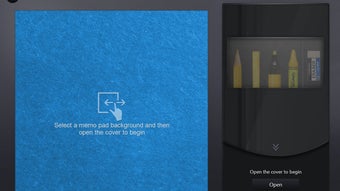
After opening the app, you’ll see a blank cork‑board canvas. To create a note, tap the large + New Note button in the bottom‑right corner. A resizable sticky note appears; you can type text, draw with a stylus, or use your finger. Use the toolbar at the top of the note to switch between the pen, highlighter, or brush, and pick colors from the palette. To change the note’s background, click the Background icon and select a shade.
Moving notes is as simple as dragging them with your finger or mouse. Resize by pulling the corner handles. To set a reminder, click the Alarm bell icon, choose a date and time, and confirm. When the alarm triggers, YouMemo flashes the note and plays a gentle chime.
Saving is automatic; however, you can manually export a note via the Export button, choosing PNG or PDF. For bulk backups, navigate to File → Backup All Notes and save a ZIP archive to an external drive.
Compatibility, System Requirements, & Pros / Cons
Supported Operating Systems: Windows 10, Windows 11 (64‑bit). While the app can run on non‑touch PCs, its full feature set is optimized for touch‑screen devices.
Minimum System Requirements:
- Processor: 1 GHz or faster (dual‑core recommended)
- RAM: 2 GB minimum, 4 GB recommended
- Storage: 150 MB free disk space for installation and notes
- Graphics: Any DirectX 9 compatible graphics card (touch‑screen drivers required for full functionality)
Pros
- Intuitive touch‑first interface that feels natural on tablets and convertible laptops.
- Unlimited note creation with flexible layout on a virtual cork board.
- Rich set of drawing tools, stamps, and background colors for personalization.
- Lightweight and fast; does not consume significant system resources.
- Free to download with regular security updates.
Cons
- Alarm function is basic; lacks recurring reminders or custom sound options.
- No native macOS, Android, or iOS versions—limited to Windows PCs.
- Export formats are limited to PNG and PDF; no native .docx or .txt export.
- Cloud sync is absent, requiring manual backup for multi‑device usage.
- Advanced collaboration features (e.g., shared boards) are not available.
Frequently Asked Questions
Is YouMemo completely free or does it have a paid tier?
YouMemo is offered as a free download with all core features available at no cost. Future premium add‑ons may be introduced, but the current version remains free.
Can I use YouMemo on a non‑touch laptop?
Yes, the app runs on any Windows 10/11 PC, but the large touch‑friendly buttons and drag‑and‑drop gestures are optimized for touch screens. On a mouse‑only device, you’ll still be able to create and move notes, though the experience is less fluid.
How does YouMemo store my notes securely?
All notes are saved locally in the Documents\YouMemo folder. The app does not upload data to external servers unless you manually export or backup the files, ensuring that your private memos stay on your device.
Is there a way to sync notes between multiple Windows PCs?
YouMemo does not include built‑in cloud sync. However, you can copy the YouMemo folder to a cloud‑storage service (OneDrive, Dropbox, etc.) and manually keep the same set of notes on multiple machines.
Will future updates add more alarm options or collaboration tools?
The development team has indicated that they are listening to user feedback. Upcoming updates may include recurring reminders, custom sounds, and limited sharing capabilities, but no official release dates have been announced yet.
Conclusion & Call to Action
YouMemo fills a niche that many generic note‑taking apps overlook: a touch‑screen‑centric, cork‑board‑style workspace that feels natural for sketching, annotating, and quick reminder creation. Its free price tag, lightweight footprint, and robust customization options make it an excellent choice for students, designers, and anyone who prefers a visual, drag‑and‑drop approach to information management. While it lacks advanced alarm scheduling and cross‑platform sync, the core experience is polished and reliable. If you own a Windows laptop or tablet with a touch screen, give YouMemo a try today—download the installer, create your first sticky note, and discover how much more productive a digital cork board can be.
Ready to boost your productivity? Download YouMemo now and start organizing your ideas with a touch.